
3 Batch Workflows for Fashion Design: Faster Prints, Graphics, and Colorways
Faster exploration, rapid iteration, and creative range — all in one click.
Design teams don’t work one option at a time anymore. You’re expected to explore dozens of directions quickly — new prints, new placements, new colorways — and align on the best ones fast.
That’s why we built Batch Workflows in Raspberry AI.
Batch tools are made for teams that iterate at speed and need multiple high-quality options at once, without repetitive setup. Now you can set your controls once and apply multiple patterns, graphics, or colors in a single click — directly inside the Edit Module.
Why Batch Workflows Matter
Batch workflows unlock the kind of exploration that usually takes hours, days, or multiple rounds of manual work.
With Batch Mode, teams can:
- Explore more creative directions, faster and more accurately
- Generate option sets for reviews in minutes
- Build consistent families of prints, graphics, or colorways
- Reduce repetitive clicks while maintaining control
- Make better decisions sooner, with more options on the table
1. Batch Pattern Application
.avif)
A brand new way to apply multiple patterns to a base layer in one step.
Instead of masking and applying prints one-by-one, Batch Pattern Application lets you upload a group of patterns, set your controls once, and receive a full lineup instantly.
How to use it
1. Go to Edit Module → Apply Print or Fabric → Batch Mode
2. Mask the area you want to add a pattern to
3. Upload your patterns
4. Adjust settings like:
- Scale
- Opacity
- AI Enhance
- And more
These settings apply automatically to every uploaded pattern.
5. Click Apply
6. Review outputs and:
- Select any version to add as a layer
- Or download all versions at once
Check out a quick 30 second demo video.
What it’s great for
- Seasonal print exploration
- Assortment building
- Print swaps during line reviews
- Rapid “what-if” testing across silhouettes
Result: more creative range, fewer steps, and dramatically faster print decision-making.
2. Batch Apply Graphics and Placement Prints
.avif)
Build graphic families or test multiple placements at scale — all in one run.
How to use it
1. Go to Edit Module → Apply Graphics → Batch Mode
2. Upload your graphic files
3. Set your controls once:
- Scale
- Opacity
- Brightness
- AI Enhance
- Remove Background
- And more
4. Click Apply
5. Review outputs and either:
- Add any result as a layer for team review
- Or download all instantly
What it’s great for
- Placement testing
- Graphic range creation
- Logo families
- Quick scale/position explorations for SDR decks
Result: full graphic exploration without the tedious repeat work.
3. Batch Recolor
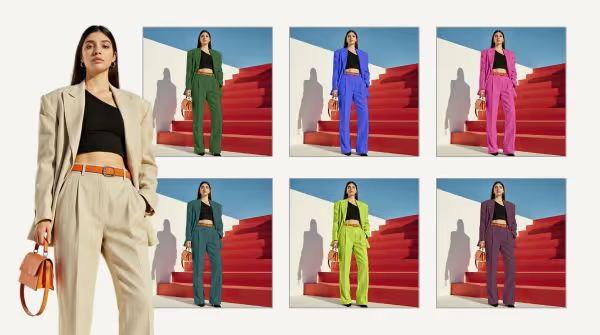
Test multiple colorways at once — and see them on product immediately.
How to use it
1. In Edit Module → Color, mask the area to recolor
2. Choose your color input method:
- Color picker (RGB, HSV, HEX, CMYK)
- Import colors from a file
- Click Swatches to build a Color Group, add colors, and hit Batch Recolor
3. Adjust blending mode (optional)
4. Click Swatches to build a Color Group, add colors, and hit Batch Recolor
5. Review results and:
- Add any version as a layer
- Or download all
What it’s great for
- Tight colorway turnarounds
- Merchandising reviews
- Retail assortment planning
- Speeding up line architecture decisions
Result: more color decisions in less time, with far less back-and-forth.
How Teams Use Batch Workflows Together
Batch Mode becomes especially powerful when you chain workflows:
- Batch apply prints → Batch recolor → Export for review
- Batch apply graphics → Compare placements → Select winners
- Print families + color families in one session
Instead of building options across multiple days and tools, teams can now generate a full review-ready range in a single sitting.
The Bigger Impact
Batch workflows don’t just save time — they change how teams create:
- Faster iteration = stronger creative confidence
- More options = better decision-making
- Less repetition = more energy for design thinking
- More consistent outputs = easier cross-functional alignment
Batch Workflows are built for how modern teams actually create — quickly, collaboratively, and with lots of options on the table.
Whether you’re exploring prints, placements, or colorways, Batch Mode gives you the speed to test more, align faster, and move forward with clarity.
👉 Get a demo and see Batch Workflows in the Edit Module now →
Heading 1
Heading 2
Heading 3
Heading 4
Heading 5
Heading 6
Lorem ipsum dolor sit amet, consectetur adipiscing elit, sed do eiusmod tempor incididunt ut labore et dolore magna aliqua. Ut enim ad minim veniam, quis nostrud exercitation ullamco laboris nisi ut aliquip ex ea commodo consequat. Duis aute irure dolor in reprehenderit in voluptate velit esse cillum dolore eu fugiat nulla pariatur.
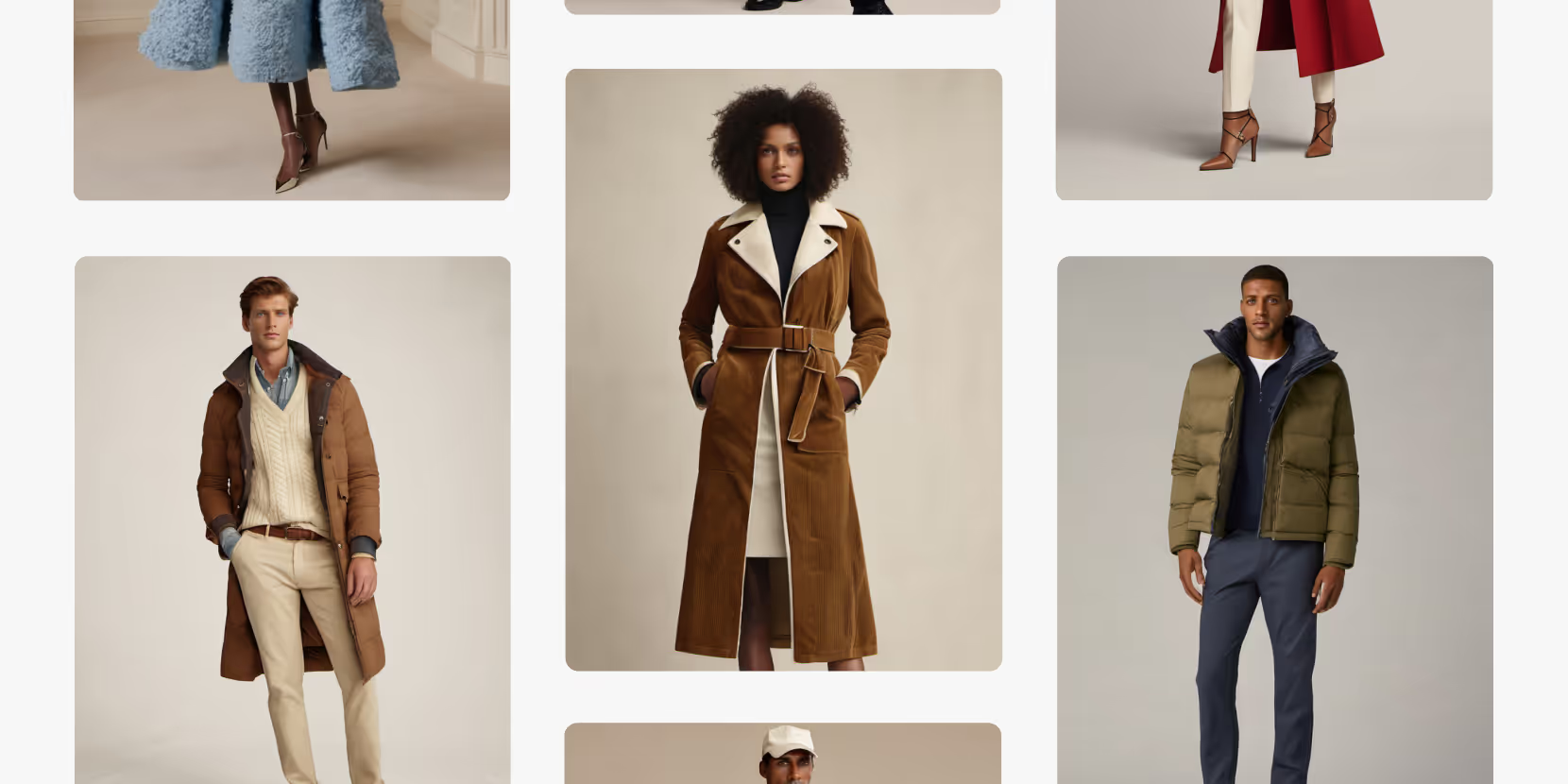
Merchandising and design now create together live in meetings—no more weeks of back and forth.”
[[VP of Merchandising] blog-quote-ttl]
[[$30M alternative eCommerce fashion retailer] blog-quote-subttl]
Quote Name Style
Ordered list
- Item 1
- Item 2
- Item 3
Unordered list
- Item A
- Item B
- Item C
Bold text
Emphasis
Superscript
Subscript

Why Raspberry AI is the Only Creative AI on the CB Insights 2026 AI 100
CB Insights evaluated more than 40,000 AI companies worldwide. 100 made the cut. Raspberry AI is the only one built for creative teams — and the data behind the selection tells a clear story about where fashion AI is headed.
How AI-Powered Design Is Solving Fashion's Physical Sampling Problem
Fashion's pre-production sampling process generates hundreds of wasted garments per brand per season. Here's how Raspberry AI is eliminating that waste before a single yard of fabric is cut.
Visualize Your Product Displays | Raspberry AI
Turn planograms and display diagrams into photoreal, retail-ready mockups with Raspberry AI’s Edit Module—ideal for merchandising, VM, and buyer presentations.
Sign Up for Our Newsletter
We’re constantly enhancing our product. Stay informed with the latest updates.
Ready to Design Smarter, Faster, and at Scale?
Start creating stunning photorealistic designs in just a few clicks.