browzwear integration
Using Raspberry AI with Browzwear
Raspberry AI integrates with Browzwear to eliminate the manual handoff between 2D design concepting and 3D garment prototyping. Designers push AI-generated concepts directly into Browzwear’s Stylezone for 3D rendering and pull 3D assets back — cutting concept-to-sample timelines and reducing version confusion across teams.
3D Design

Raspberry Capabilities for Browzwear Customers
Browzwear is a 3D garment design platform. Its Stylezone product is a cloud-based hub where teams store, organise, and review garments. The integration lets you pull garments from Stylezone into the design assistant and push AI-generated images back out — without leaving your browser.
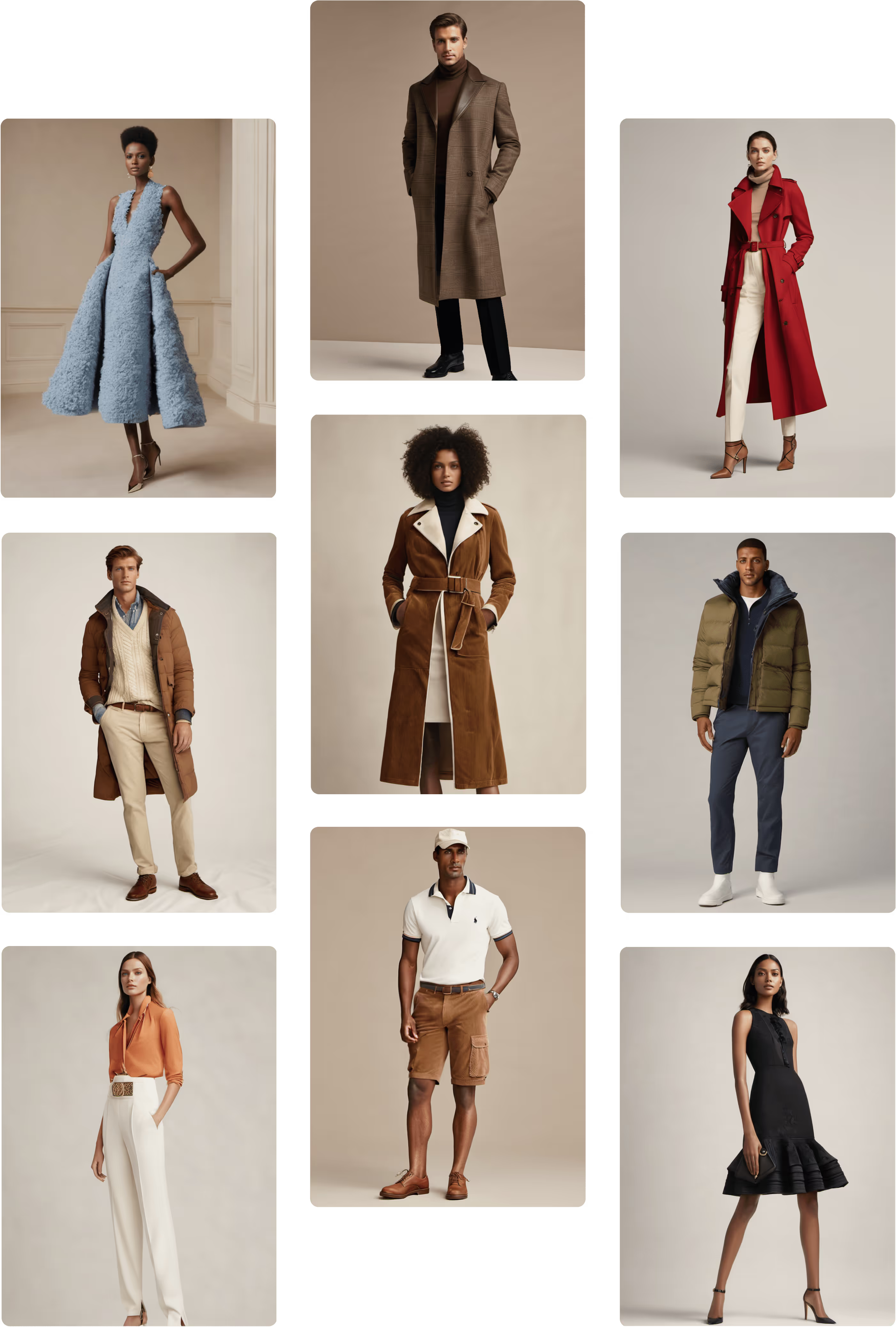
Designers can use Browzwear's 3D garment assets as AI references inside Raspberry AI, and export AI-generated concepts directly back into Browzwear as colorway references or resource files. This eliminates manual handoffs between technical design and marketing teams.
Key benefits
3D-Guided AI Concept Generation

Use imported Browzwear garment assets as precise references in Raspberry AI to generate AI concepts that match real garment construction and silhouette.
Bidirectional Asset Sync
Sync assets in both directions — import 3D garments from Browzwear into Raspberry AI, and export AI-generated concepts back into Browzwear as colorway or resource files.
AI Match for Pattern Selection
Export AI concepts from Raspberry AI into Browzwear, then use Browzwear's AI Match feature to identify the most relevant existing pattern or block from your library.
Digital Twin Validation
Validate garment fit, drape, and technical construction in Browzwear's 3D environment before generating marketing visuals in Raspberry — reducing the need for physical sampling.
Go-to-Market Asset Generation
Re-import validated Browzwear 3D models into Raspberry AI to generate photorealistic on-body imagery, campaign backgrounds, and animated video content for marketing and e-commerce.
No-Rebuild Design Continuity
Designers stay in their existing tools — the integration layers Raspberry AI's generative engine on top of Browzwear assets without requiring any workflow rebuild.
How teams use the Browzwear integration
Team
How they use the integration
Design
Import Browzwear garments into Raspberry AI to generate concepts based on real silhouettes
Technical Design
Validate fit, construction, and garment details in Browzwear before generating final visuals
Merchandising
Review colorways and concept directions using AI-generated assets tied to real 3D garments
Marketing
Create photorealistic imagery and campaign assets from validated Browzwear models
E-commerce
Generate on-body visuals and product content using 3D-approved garment references
Cross-functional
Keep design, technical, and commercial teams aligned through a shared AI + 3D workflow
Watch this video to see how the Browzwear integration works in Raspberry












.svg)
.png)
.png)
.png)





























How to connect
To enable the integration, you must have a Raspberry Professional account or above and be the Org Admin. You will need three pieces of information from your Browzwear / Stylezone account administrator:
Credential
Where to find it
API Key
Stylezone account settings → API access
API Secret
Stylezone account settings → API access
Store Name
The subdomain of your Stylezone URL — e.g. if your URL is acmecorp.stylezone.com, your store name is acmecorp
Steps:
Open Settings → Integrations in the design assistant.
Find Browzwear in the integrations list and click Connect.
Enter your APIKey, APISecret, and Store Name.
Click Save. The app will verify the credentials immediately.
A green "Connected" badge confirms the integration is active.
Note: Credentials are stored encrypted. Your API Secret is never displayed again after saving.
Importing from Browzwear
In Raspberry AI, open the image or module where you want to use a Browzwear garment.
Click the Browzwear import button (the Browzwear logo icon).
A panel opens showing your Stylezone library organized by Groups → Boards → Styles.
Browse or use the search bar to find your garment.
Select the garment (and colorway if applicable) and click Import.
The garment image is loaded as a reference into your workspace.
What gets imported:
The garment image is loaded as a reference into your workspace.
Garment metadata (style name, colorway, material info)
Exporting to Browzwear
What gets imported:
Click the Export button on the generated image.
Select Browzwear from the export options.
Choose one of two export modes:
1. Create new garment
Select or create a Group and Board to place it in.
Give the new garment a name.
Click Export.
2. Add as colorway to existing garment
Browse to the existing garment in Stylezone.
The image will be added as a new colorway on that garment.
Click Export.
A confirmation message appears once the export is complete. The garment is immediately visible in Stylezone.
Troubleshooting Browzwear connection
Symptom
Likely cause
What to do
"Connection failed" on setup
Wrong API Key, Secret, or Store Name
Double-check all three fields; confirm with your Stylezone admin
Library shows empty Groups / Boards
Account has no content, or API key lacks read permissions
Ask your Stylezone admin to grant API read access
Garment images not loading
Temporary network issue or Stylezone service disruption
Refresh the panel; check Browzwear status at status.browzwear.com
Export fails with "Unauthorized"
API credentials have been rotated or revoked
Reconnect the integration with fresh credentials
Export fails with "Garment not found"
The target garment was deleted in Stylezone
Select a different garment or create a new one
Integration option greyed out
Your plan does not include Browzwear
Upgrade to Professional or contact your account manager

Frequently asked questions
Do I need a separate Browzwear account?
Yes. The design assistant connects to your existing Browzwear Stylezone account. If you do not have an active licence with those platforms, contact their sales teams directly.
Can multiple team members use the same integration credentials?
Each Org-Admin sets up their own connection. Usable to all the members within the org.
Are my credentials stored securely?
Yes. Credentials are encrypted at rest and are never exposed in the interface after initial setup. All the communication with the platforms are done via encrypted creds.
Can I disconnect an integration?
Yes. Go to Settings → Integrations, find the integration, and click Disconnect. Your stored credentials are deleted immediately.
Does Browzwear see my other AI generations?
No. Only the images you explicitly export are sent. Nothing is shared in the background.
My export succeeded but the image isn't visible in Stylezone.
What should I do?
Allow up to a minute for the asset to index. If it still does not appear, check whether your account has any pending approval workflows that hold new assets in a draft state before publishing.