

Thank you! Your submission has been received!
Oops! Something went wrong while submitting the form.


Tips & Tricks
Embroidery in the Edit Module
Flat Embroidery
Prompt: Update to 3D Puff embroidery like reference image
REference images

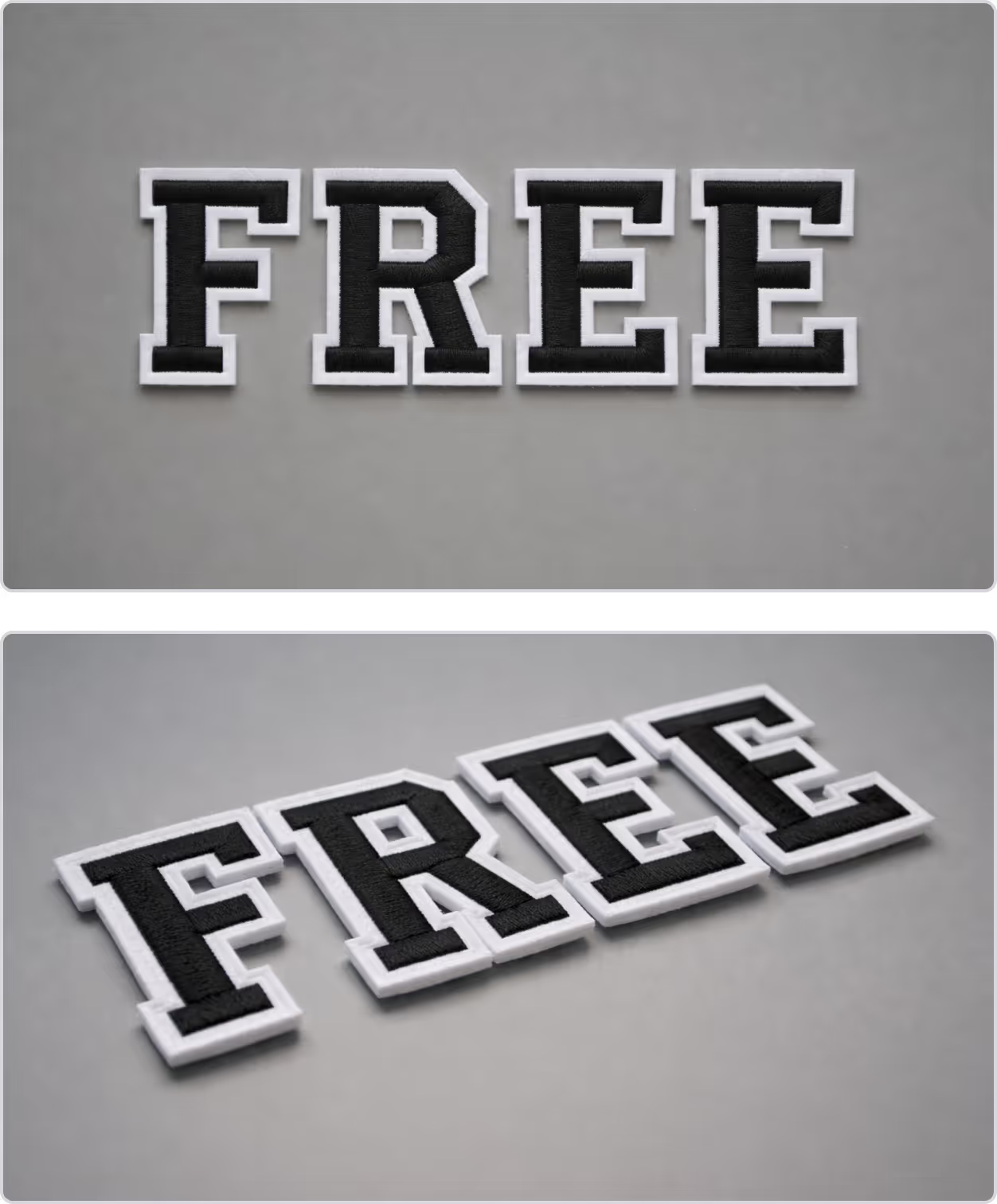
Output

3D Puff Embroidery
Prompt: Update to 3D Puff embroidery like reference image
REference images

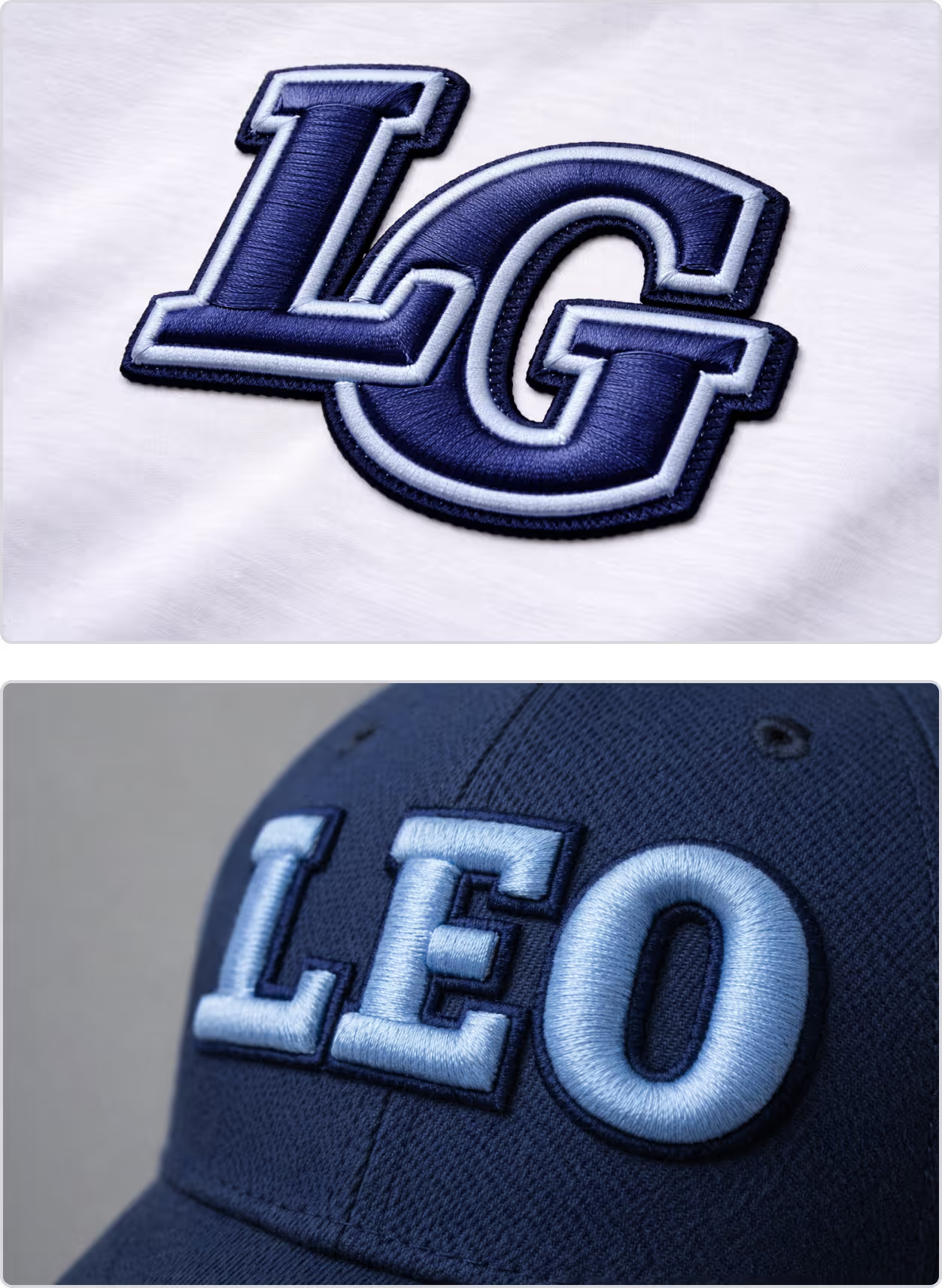
Output
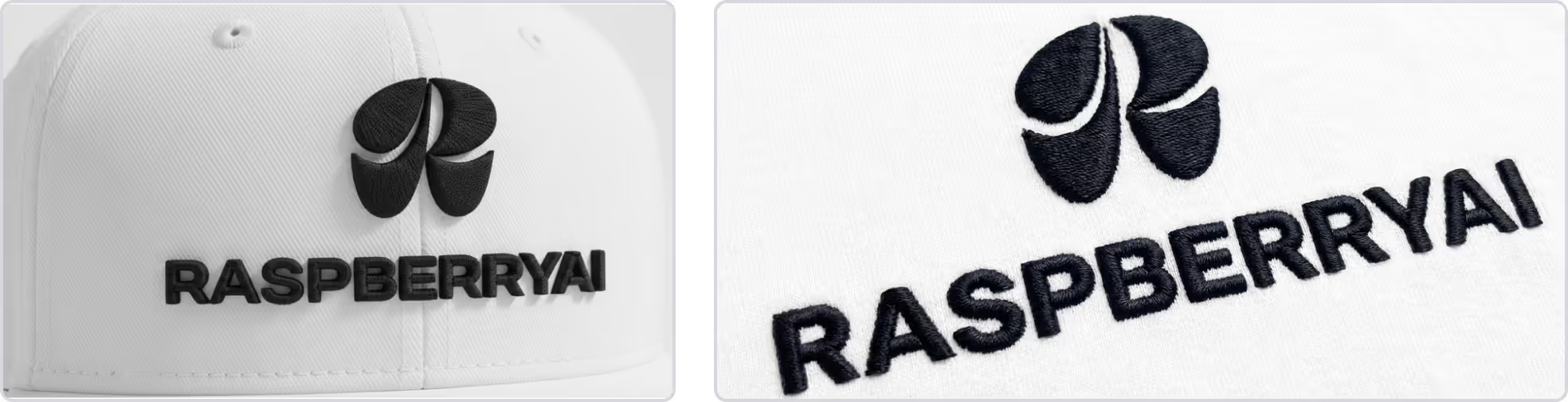
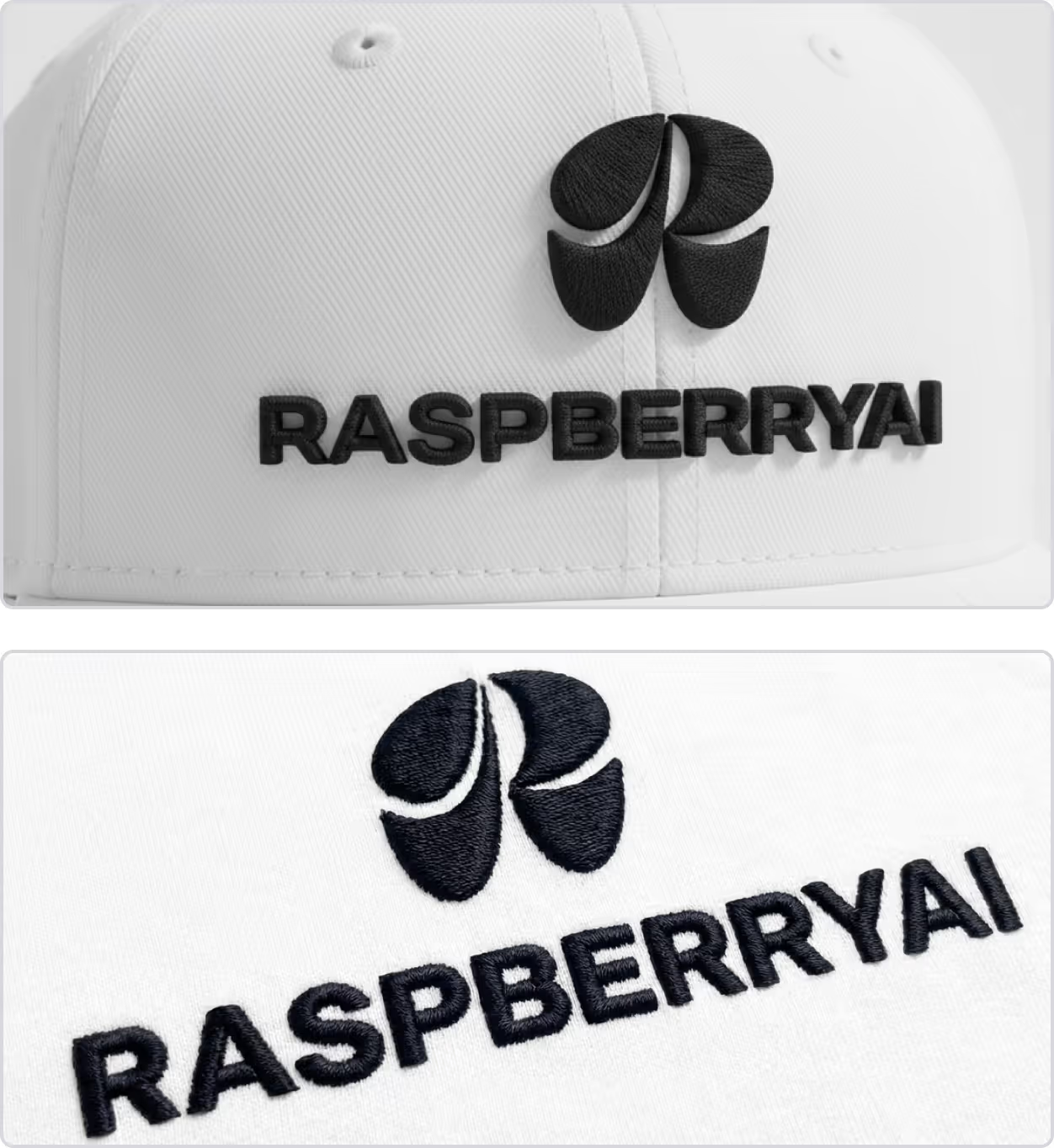
Flock Embroidery
Prompt: Update artwork to flocked embroidery
REference images
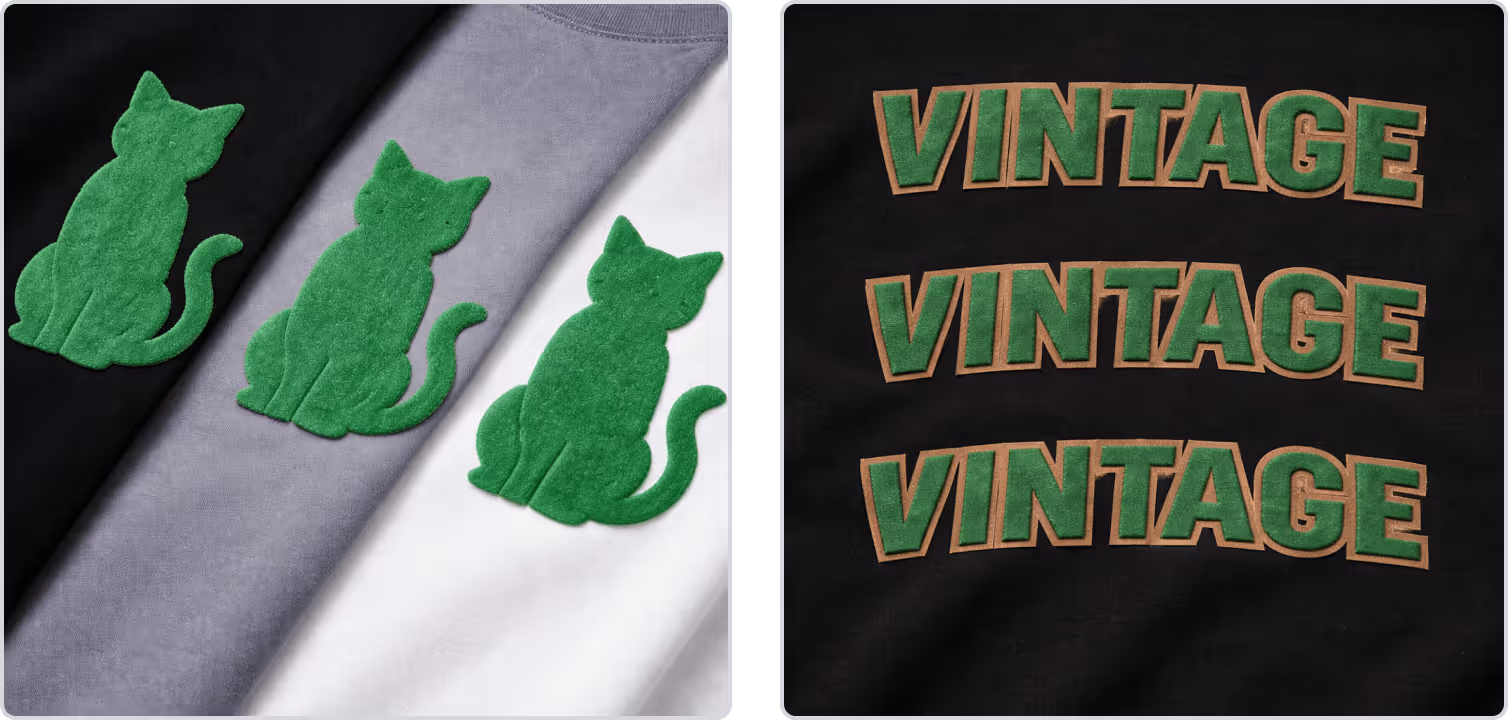
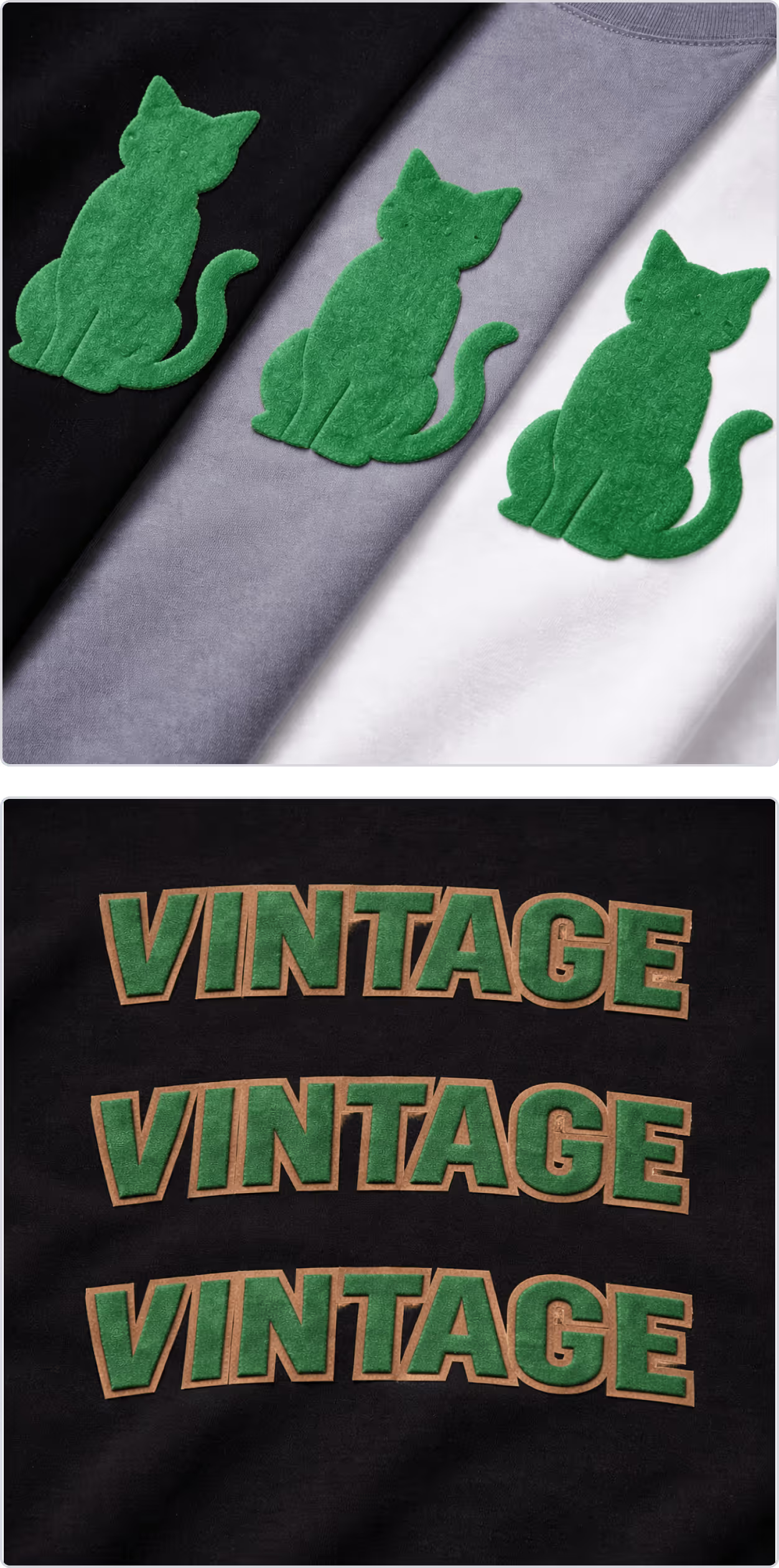
Output


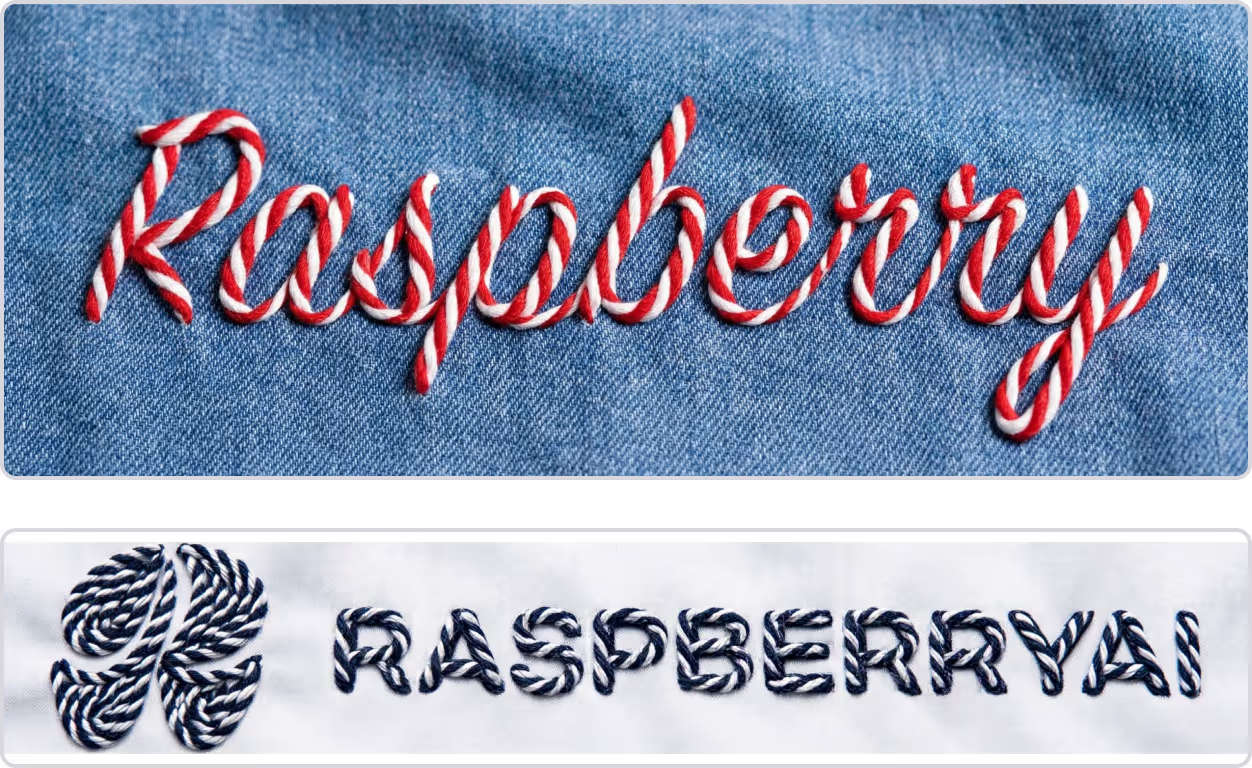
Cord Embroidery
Prompt: Update to a cord embroidery like reference image
REference images
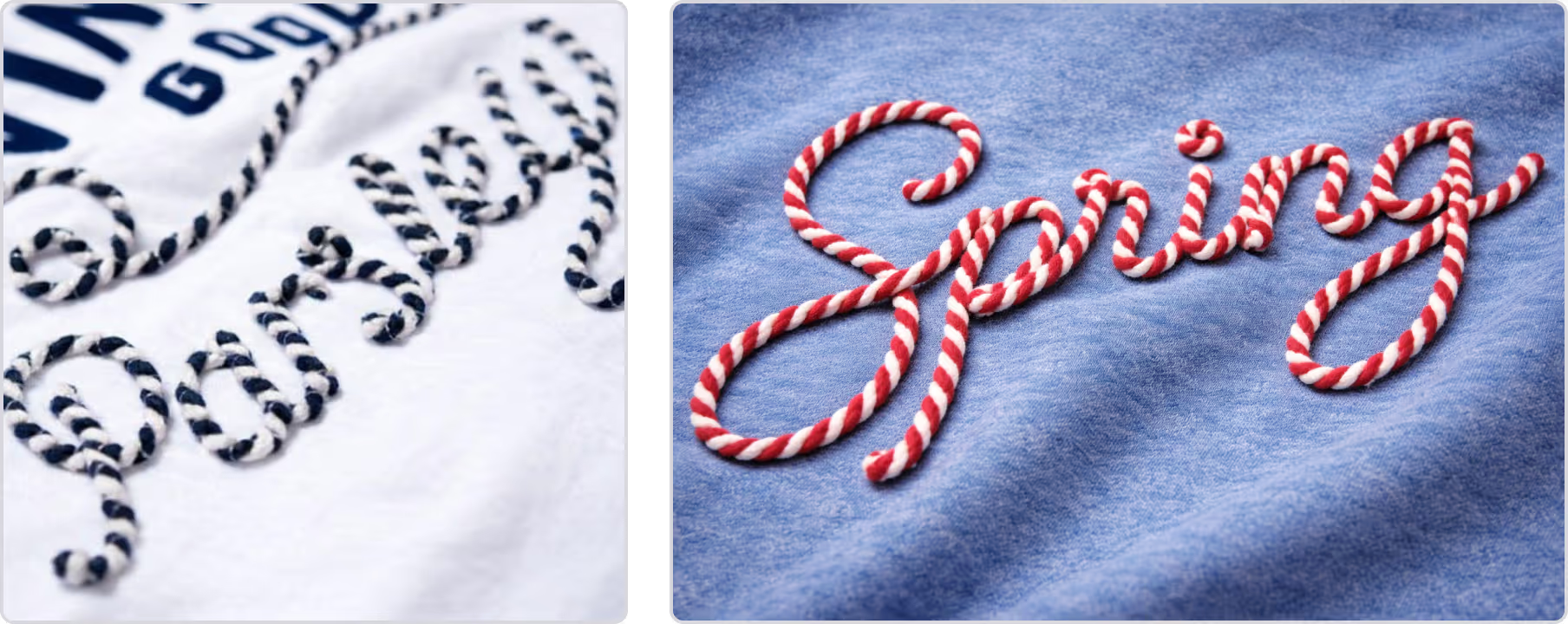
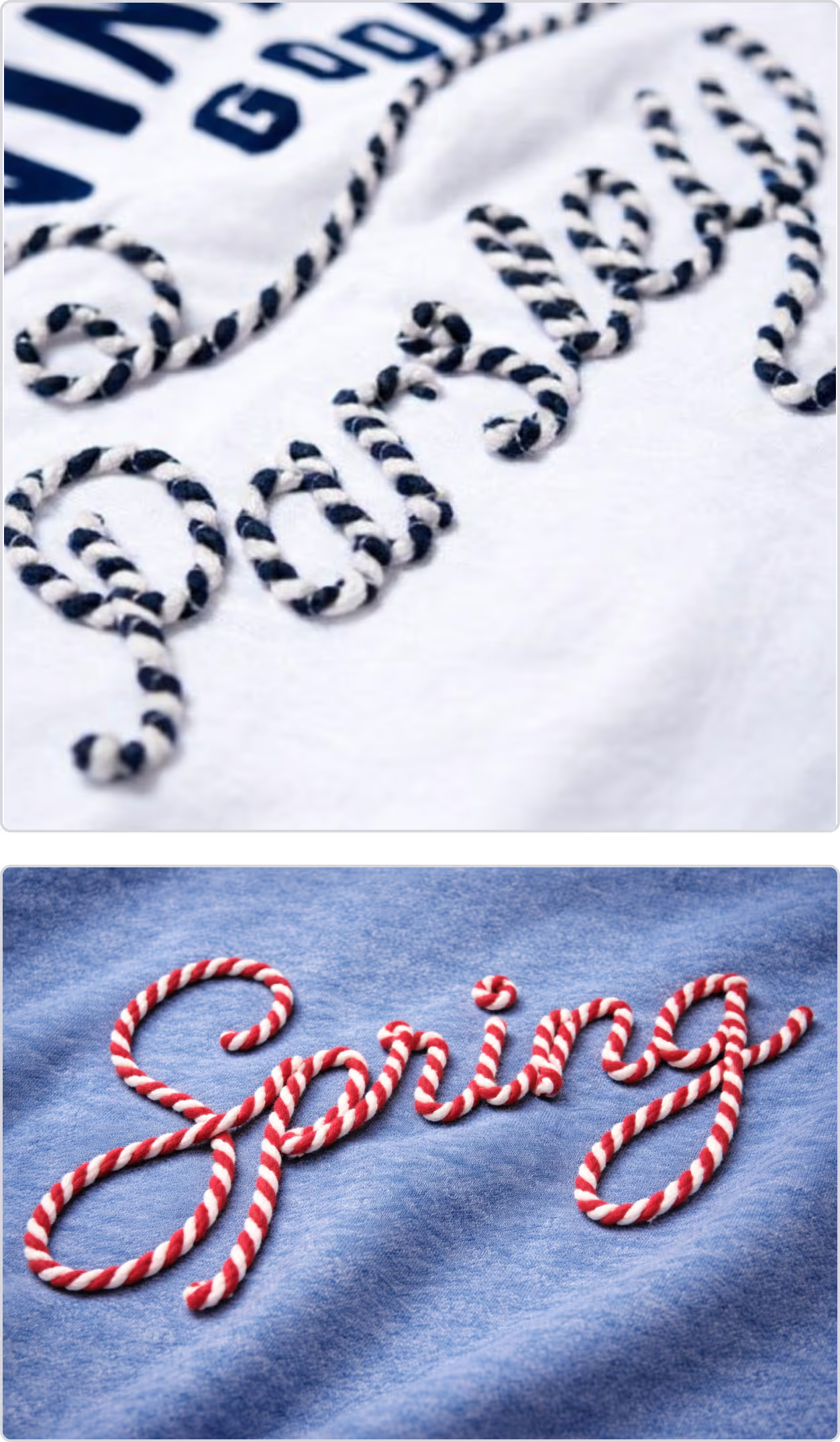
Output

Applique Embroidery
Prompt: Update artwork to a satin applique
REference images
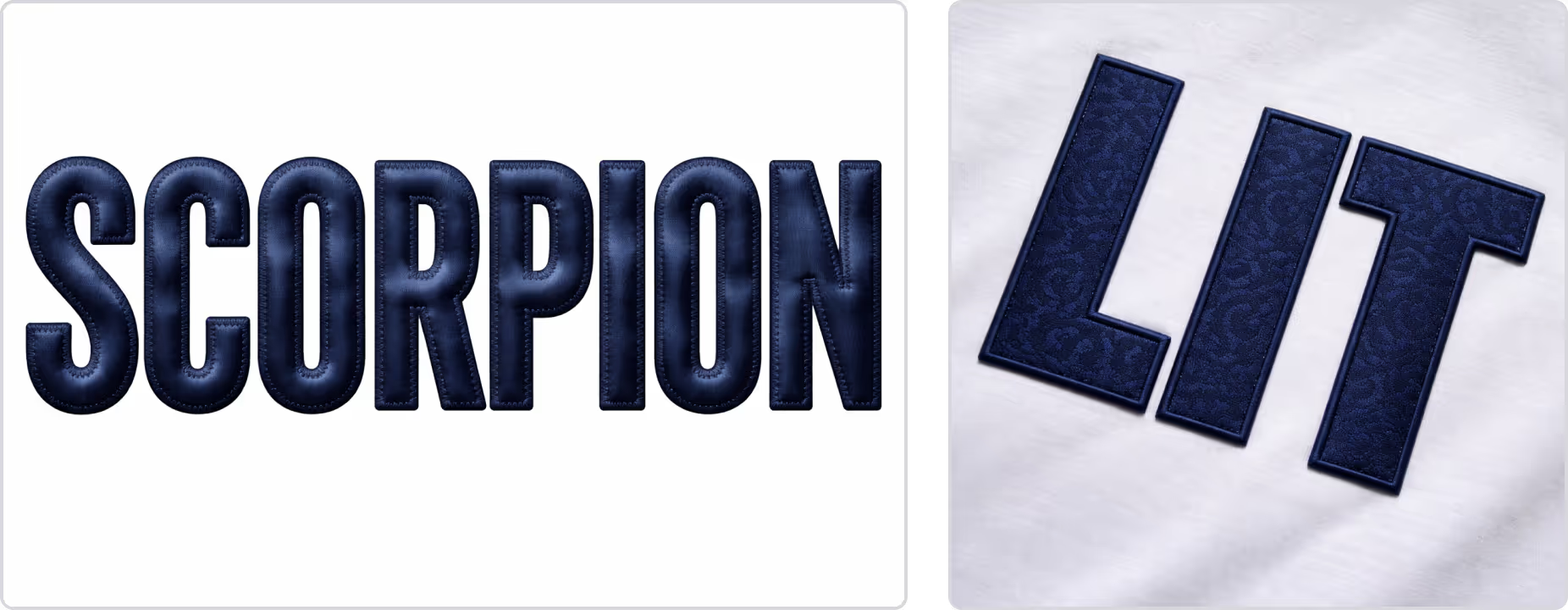
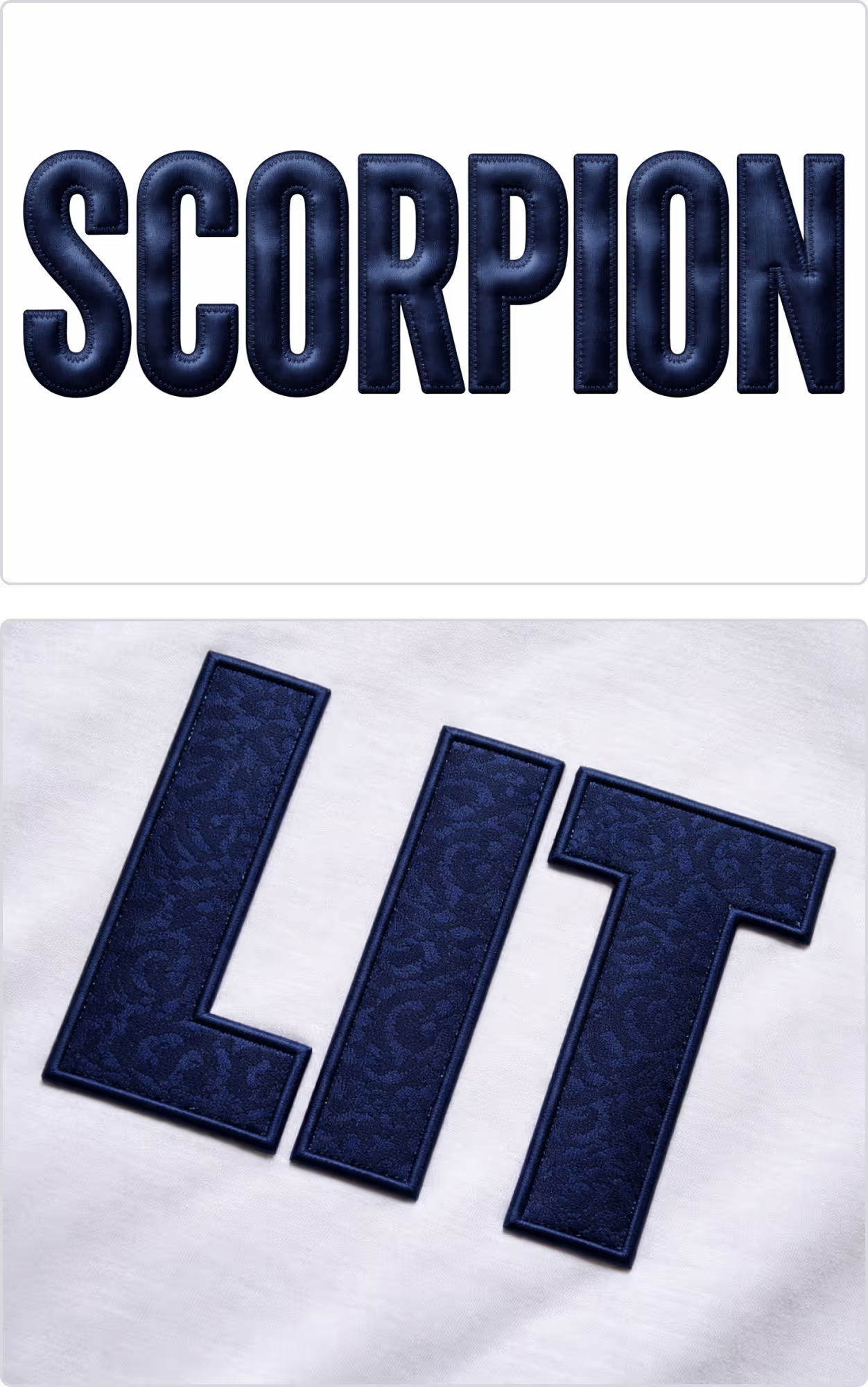
Output

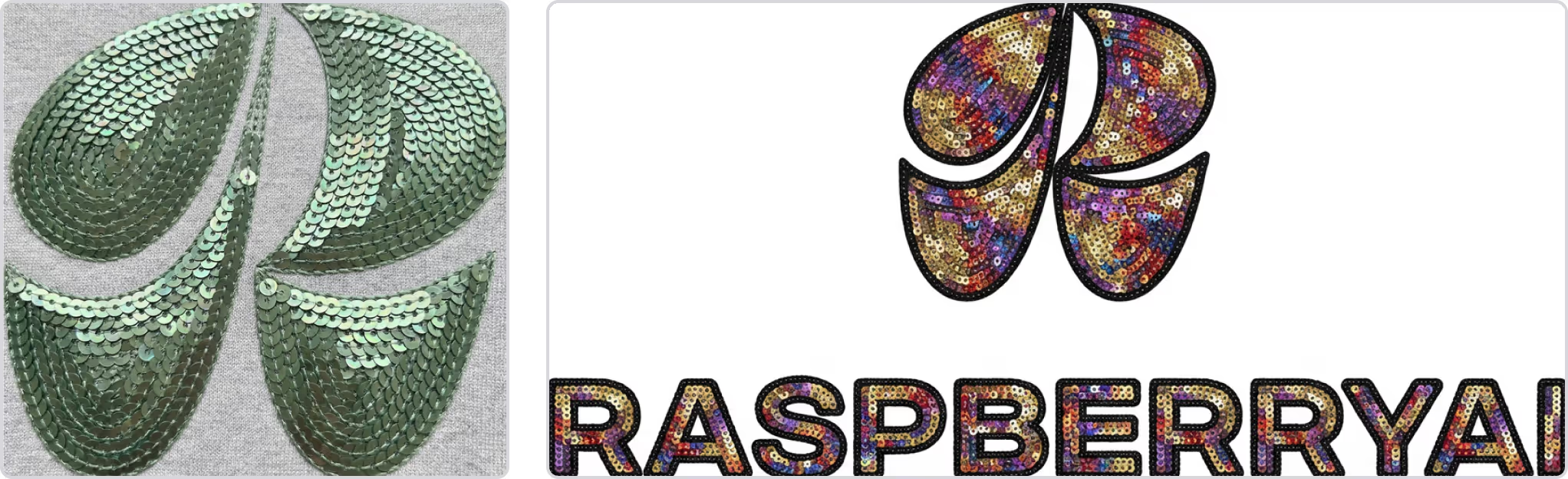
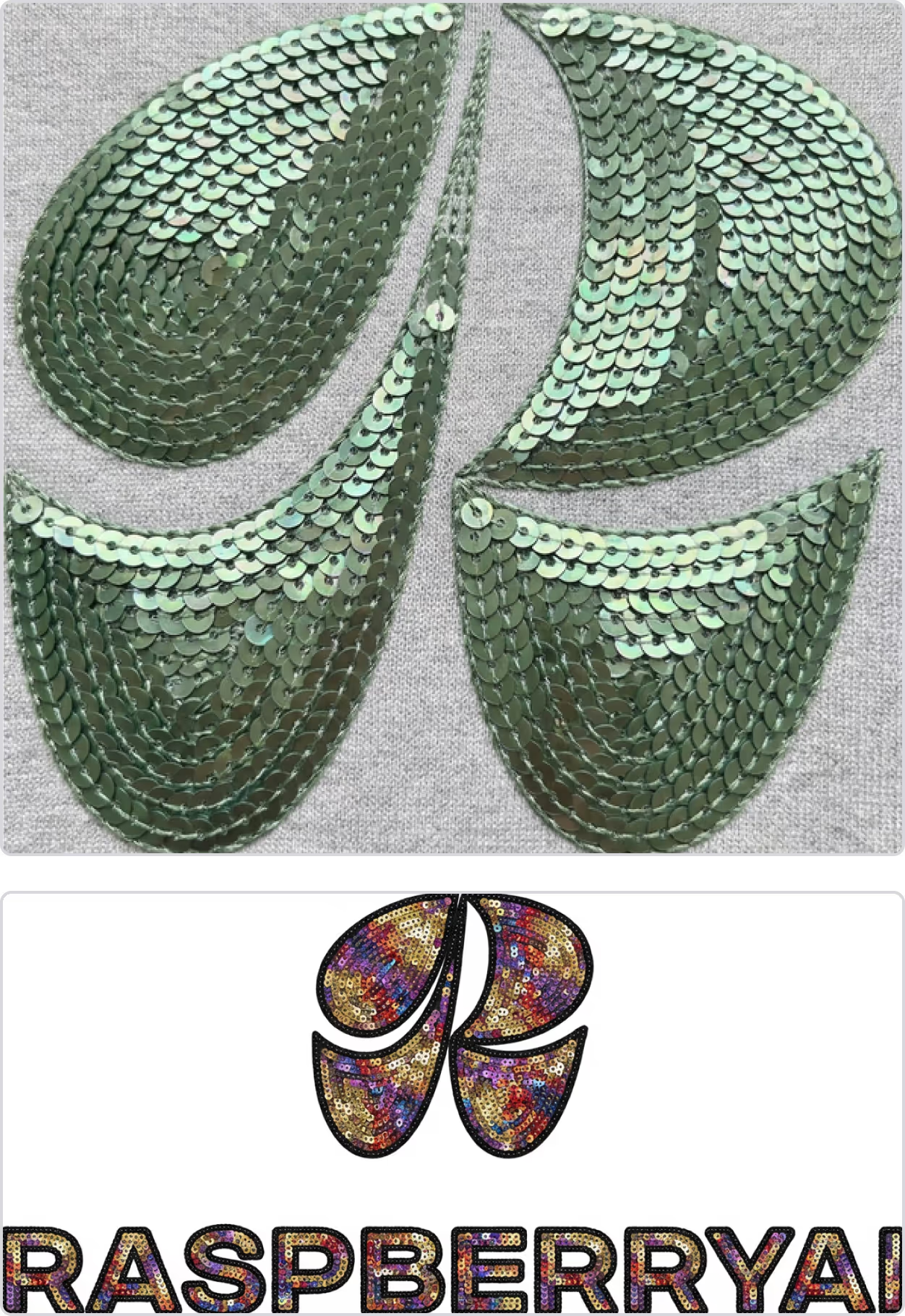
Sequin Embroidery
Prompt: Update to a colorful sequin embroidery
REference images
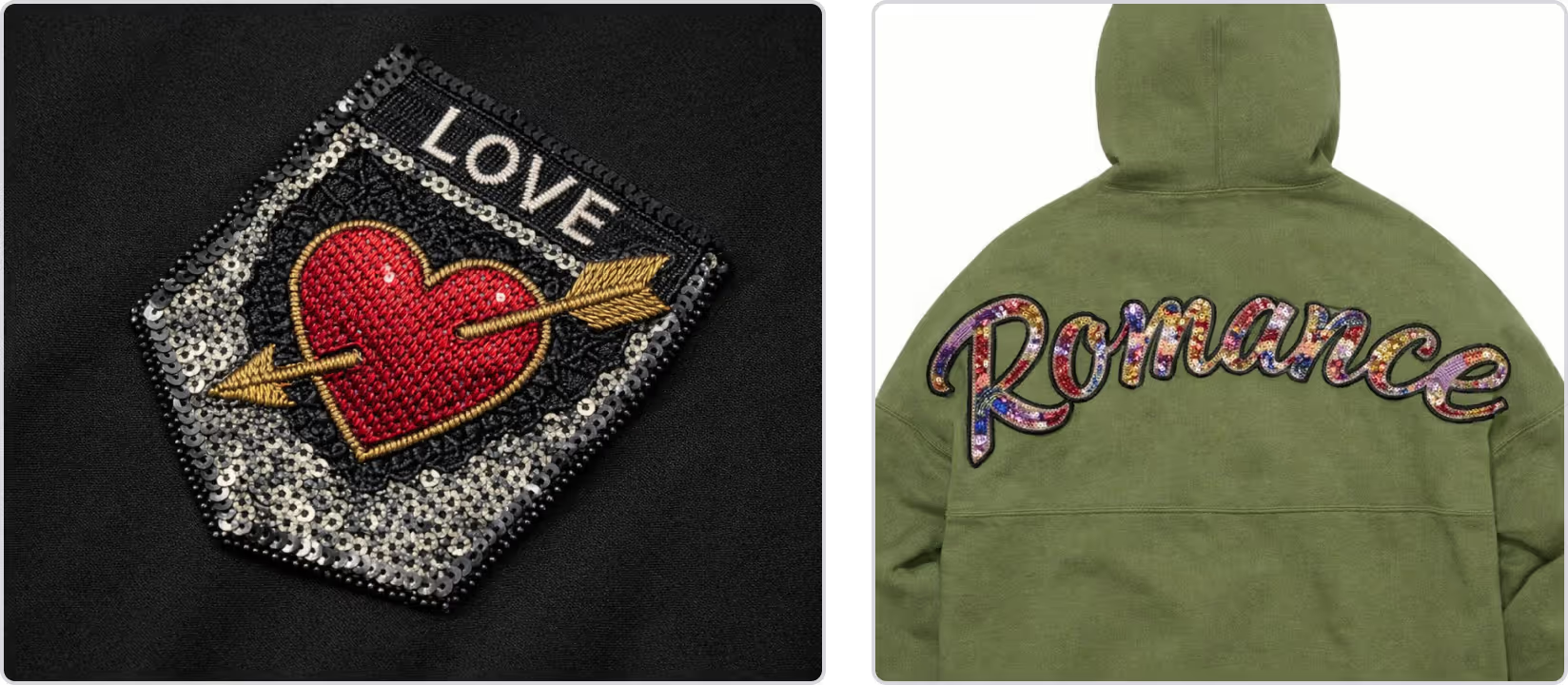
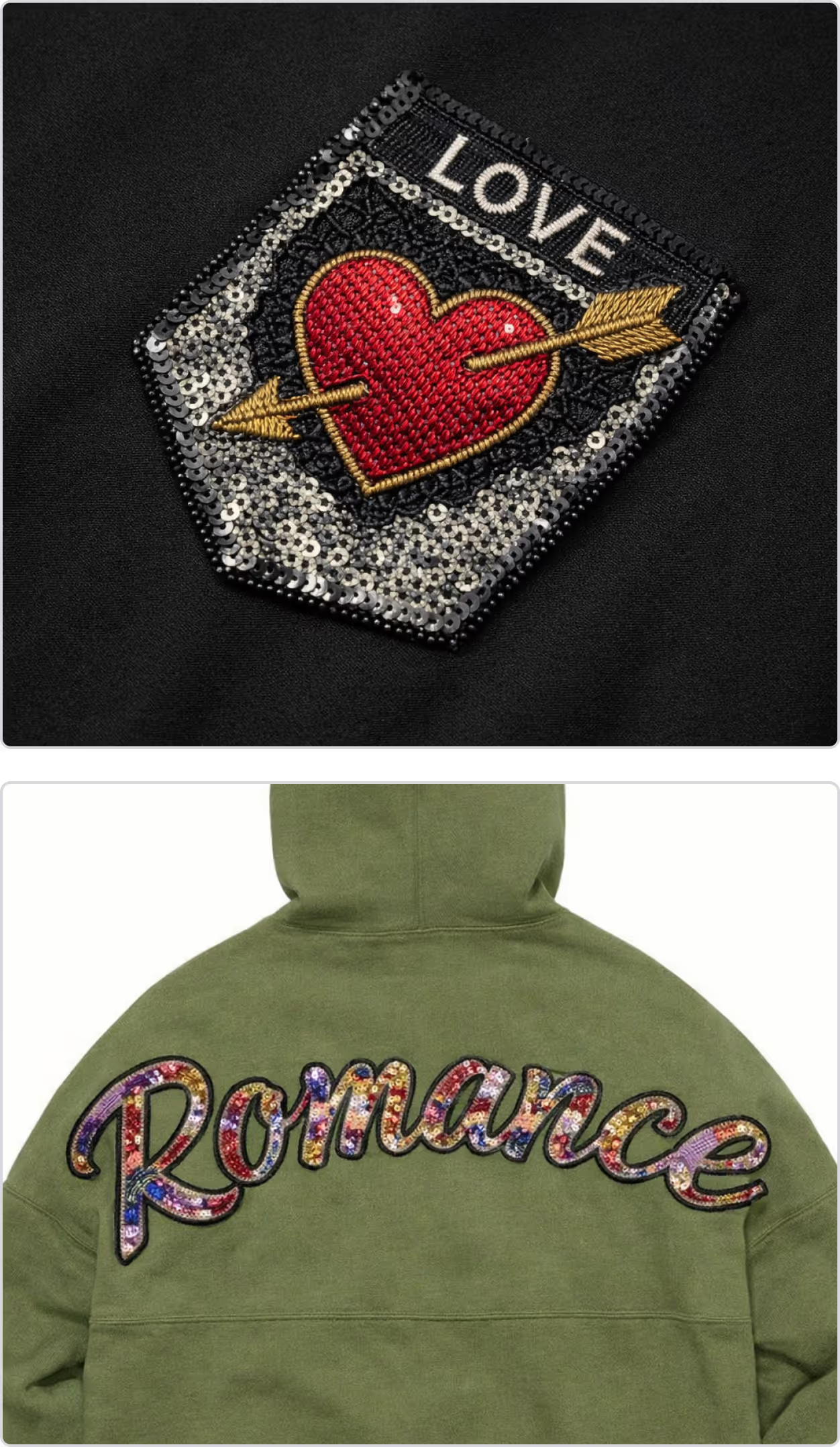
Output
Chenille Embroidery
Prompt: Update to chenille embroidery
REference images
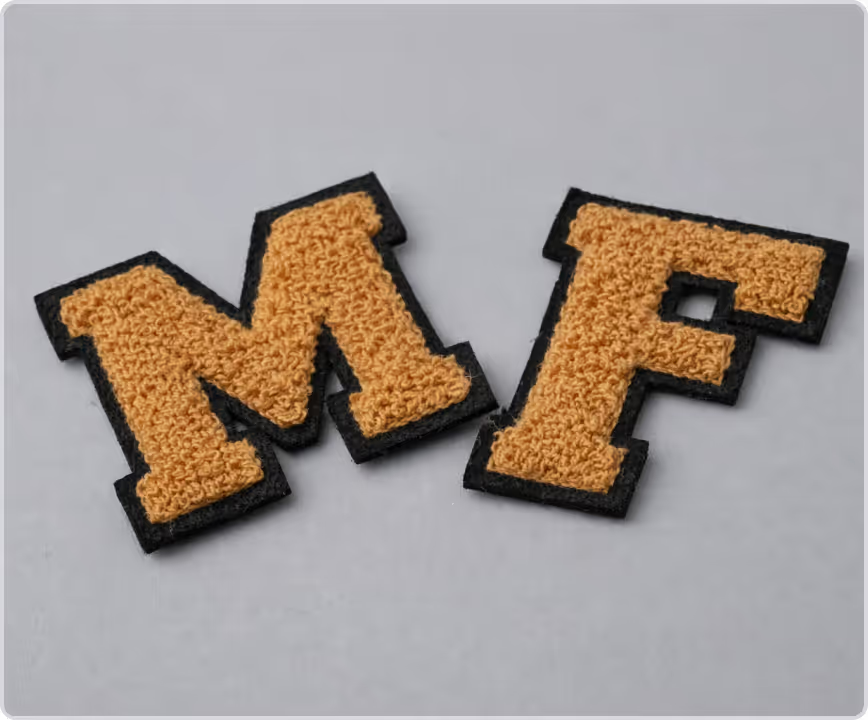
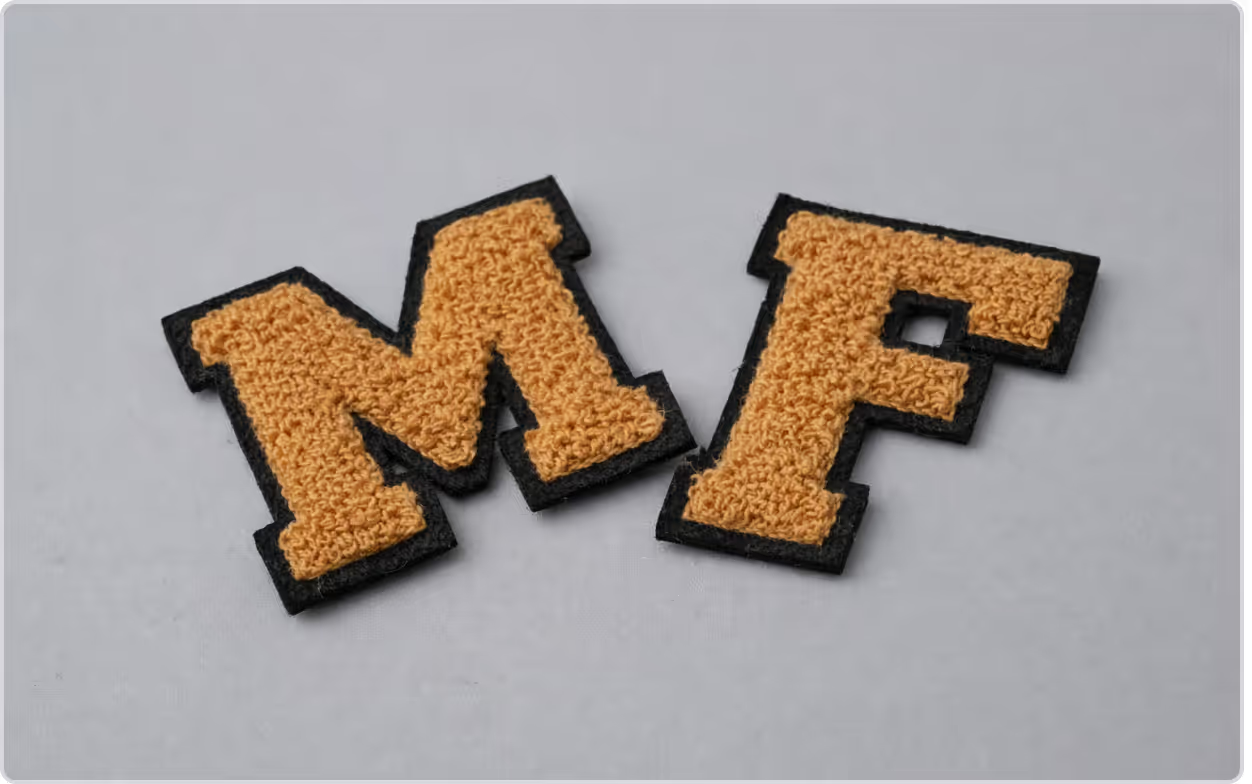
Output
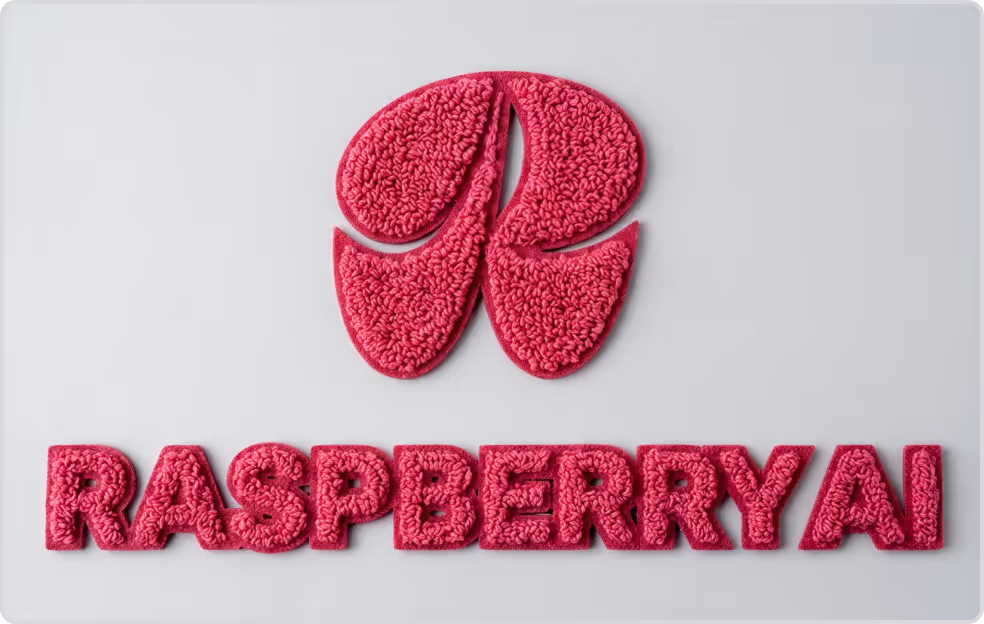
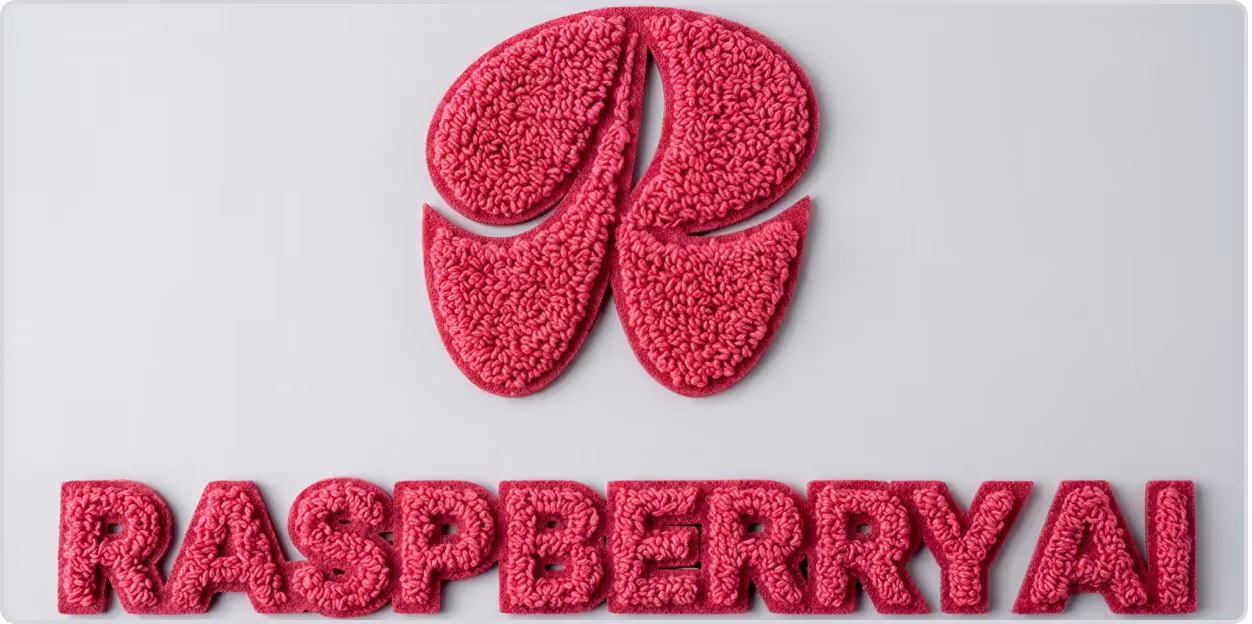
Tufting Embroidery
Prompt: Update to a fuzzy tufted embroidery
REference images
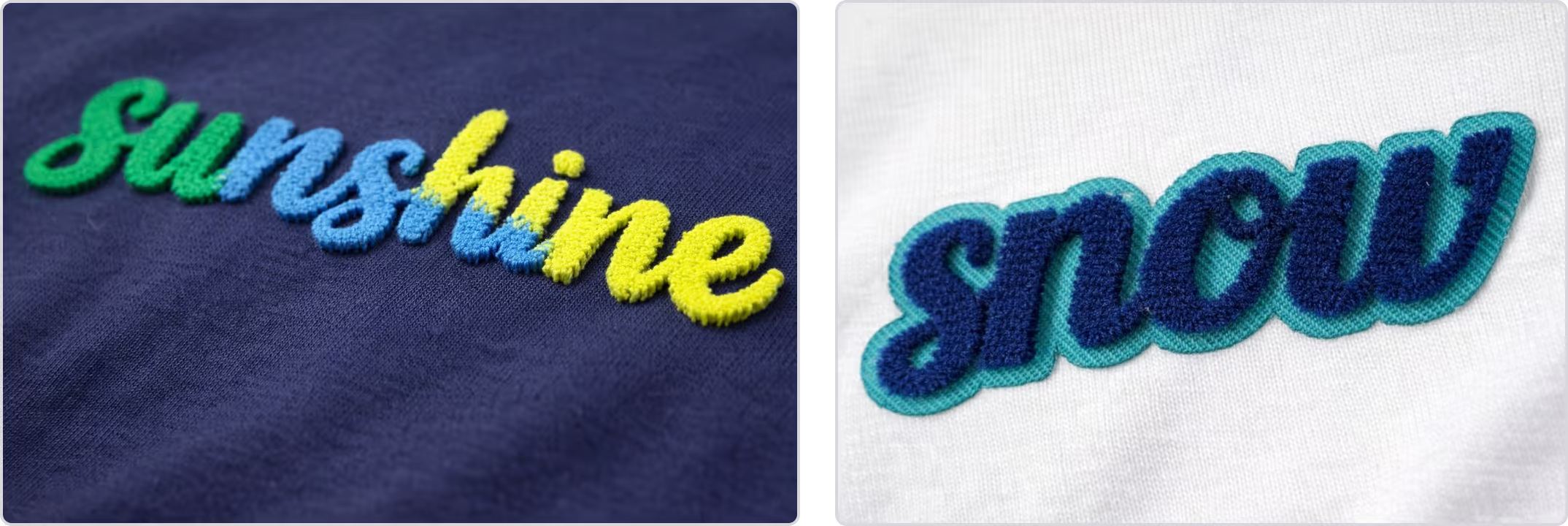
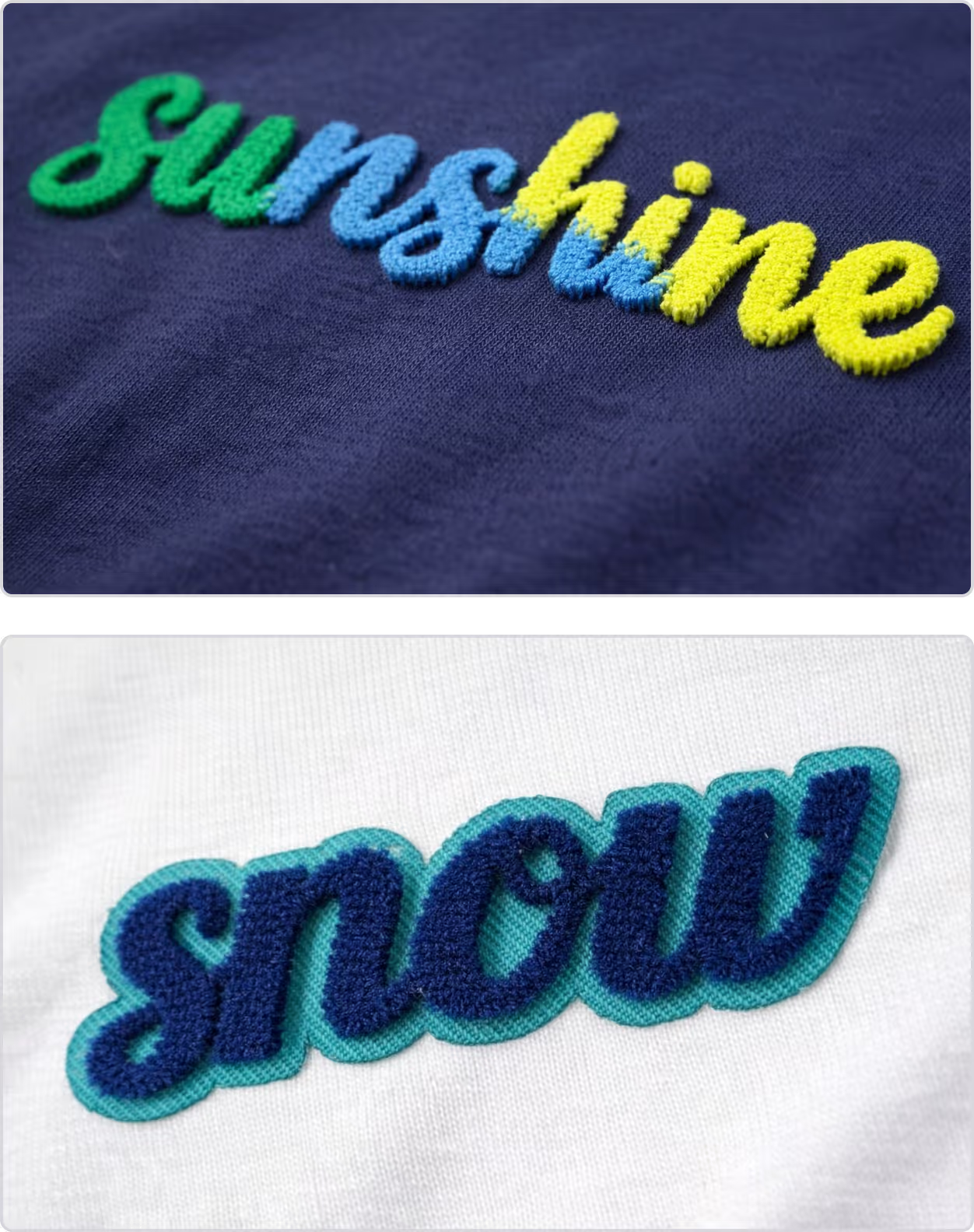
Output
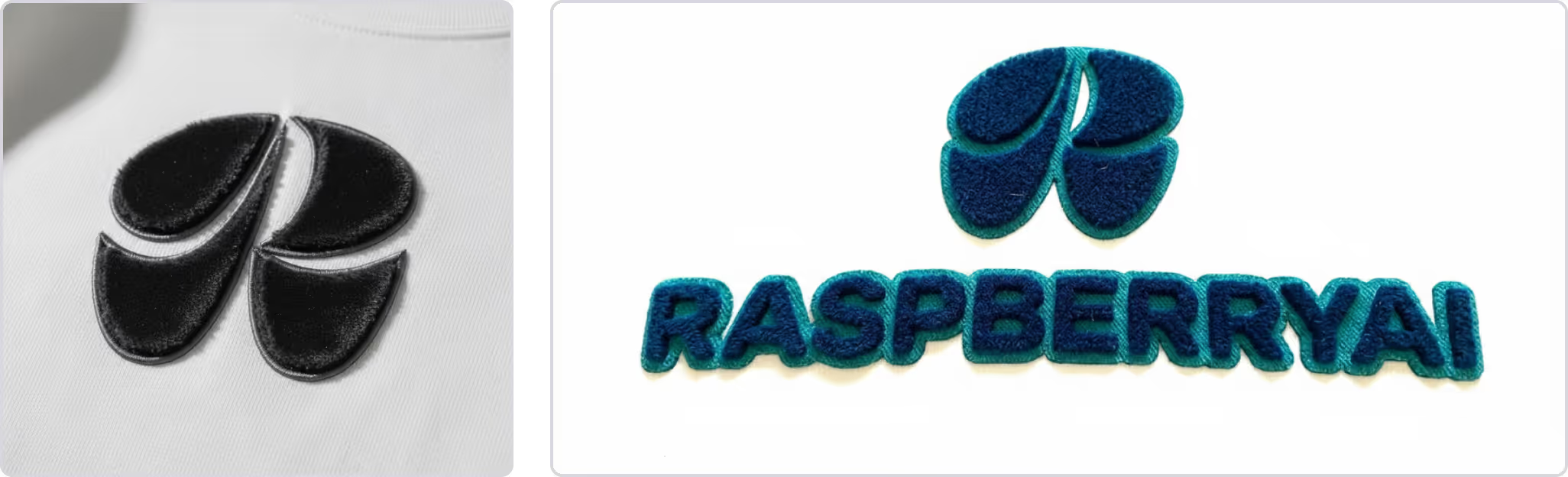
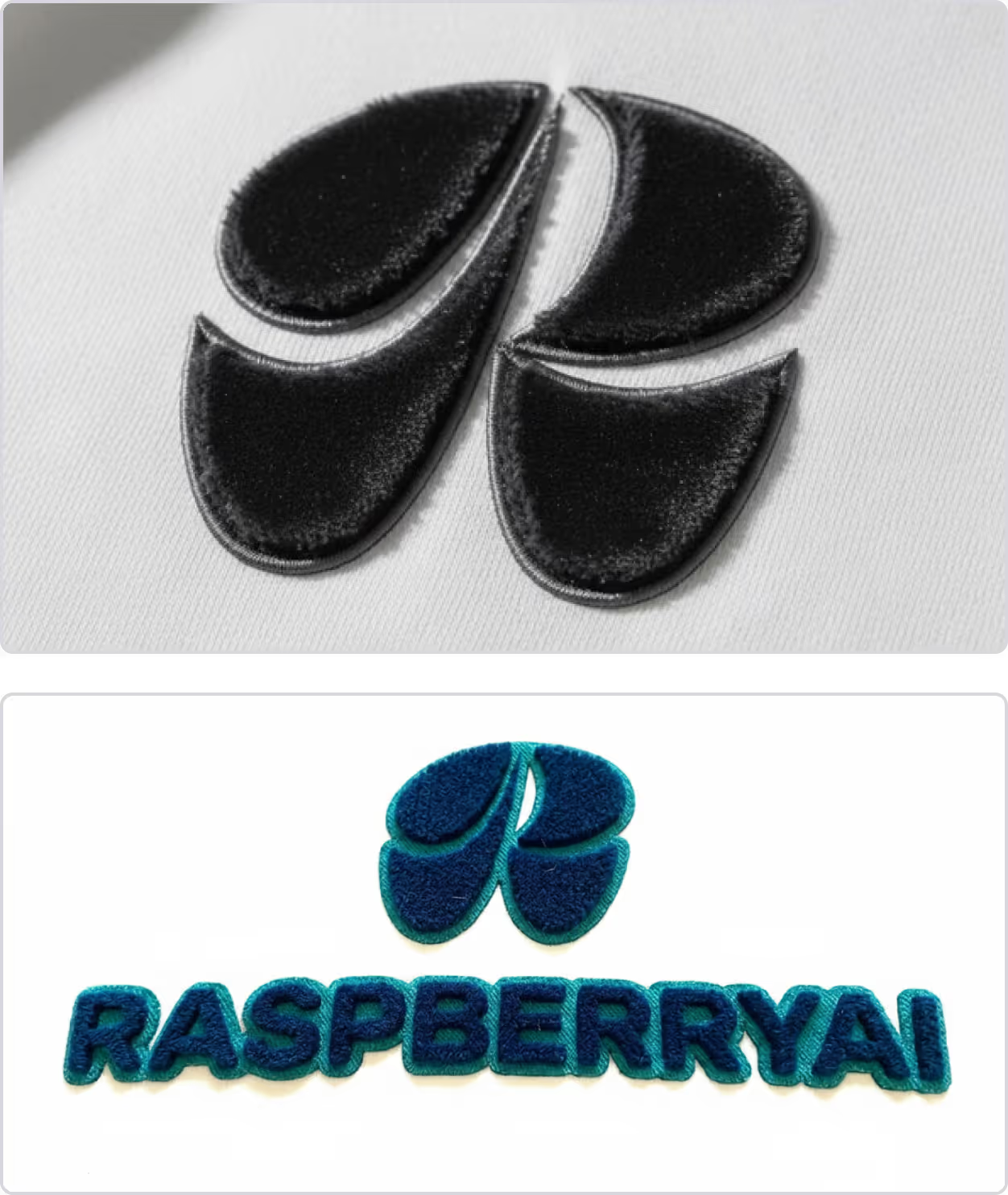
Troubleshooting Tips & Tricks
General Tips
Clarity and Precision
Add “like the reference image” to your prompt
Ex. Update to a colorful sequin embroidery like the reference image
The output shows up on an unwanted material
Add “on white background” to your prompt
Ex. Update to a flat embroidery like the reference images, on a white background
The output show up in an unwanted color
Add information about the desired color
Ex. Update to a cord embroidery like the reference images, the cord embroidery should be red and black
The output looks dull and muted
Add “high quality lighting” to your prompt
Ex. Update to a fuzzy tufted embroidery, high quality studio lighting
The output shows up in a new layout
Add “keep layout the same” to your prompt
Ex. Update artwork to flocked embroidery, keep layout the same
What if I don’t have a reference image?
You don’t always need a reference image, but it helps get you closer to your desired output if you do!
Google it!
Use a supplier sample
Use a previously manufactured sample
Use a benchmark from another brand